PRODUCT & UX DESIGN ∙ LEARNABILITY & PRODUCT ADOPTION
Simplifying API connections, for a low-code form design and development platform
Low-code platforms promise to help people build powerful digital experiences without needing to be professional developers. But as these platforms become more capable, they can also become more complex.
THE QUESTION
How might we help users with different levels of technical knowledge connect their forms to external systems—without overwhelming beginners or slowing down experienced users?
THE TRANSFORMATION
CHALLENGE & OPPORTUNITY
Making complex software, learnable
For this workflow, I explored how to redesign and increase learnability for a technically complex API connection within a low-code form development platform.
The challenge wasn't simply to make the interface "easier"; it was to explore how to reconsider the technically complex API connection workflow within a low-code form development platform.
DESIGN METHODOLOGY
Meet users where they are
Adapt to what they know
Help them get where they need to go
Rather than giving every user the same technical configuration experience, the redesigned workflow adapts to the user's goal, familiarity, and need for guidance.
The platform allows business users and low-code developers to create forms and connect them to external systems.
For example, a user might want to create an employee onboarding form and automatically send each submission to their organization's HR system.
However, the user’s and platform’s mental models are not aligned:
USER’S MENTAL MODEL →
"When someone submits this form, I want that information to go into our HR system."
PLATFORM’S MENTAL MODEL →
"What is your API endpoint?"
"What authentication method are you using?"
"Where is your client secret?"
"What is your token URL?"
This creates a disconnect between what the user wants to accomplish and what the product asks them to understand. The result is a workflow that can be technically correct while still being difficult to learn and complete.
USER PERSONAS
The platform needs to serve users, with very different levels of technical knowledge and confidence
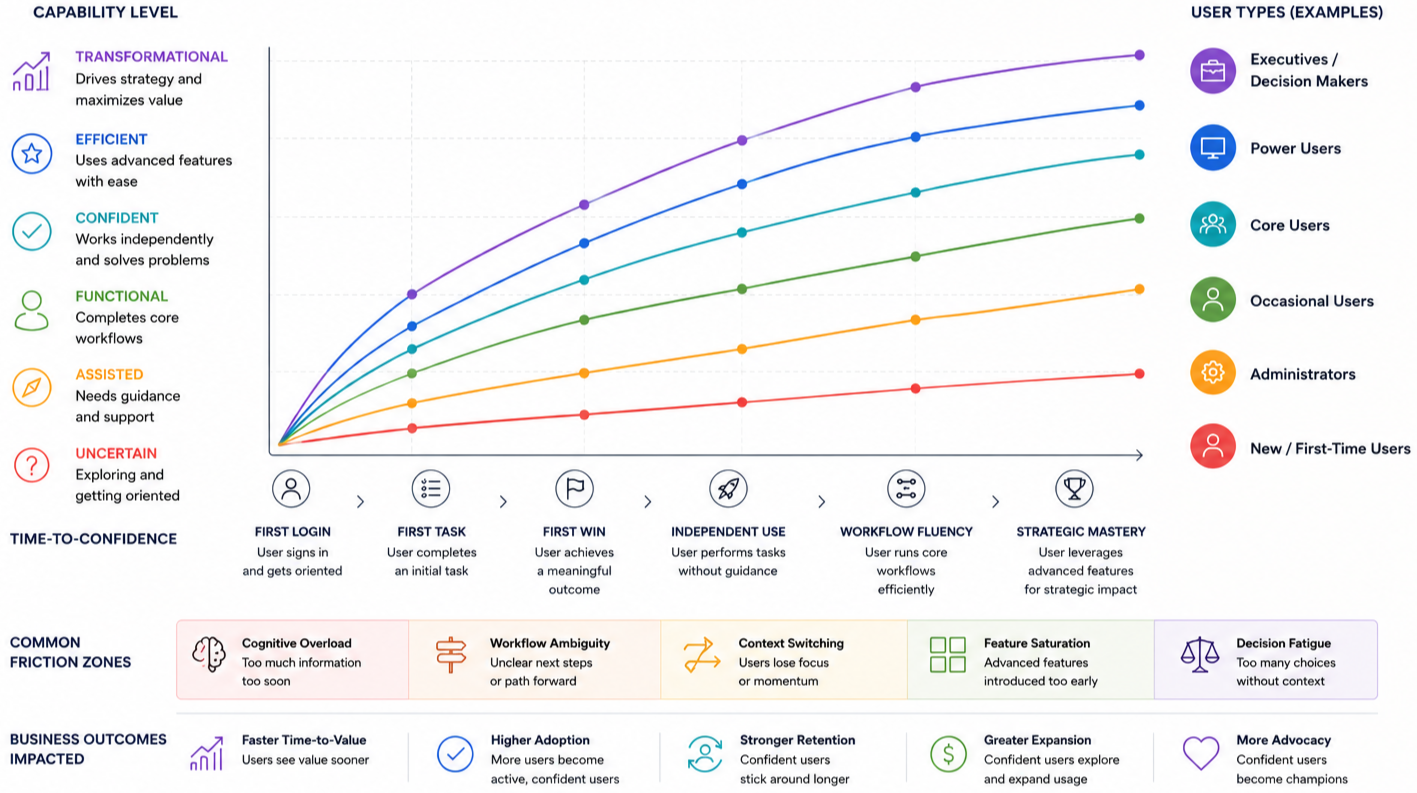
These users should not all have to navigate the same experience. It’s also important to note that adoption isn’t about how fast users click, it’s about how fast they become confidently capable. I used my time-to-confidence framework as a guide to understand and design for this broad spectrum of users and capability.
THE BUSINESS USER
Understands the business process they want to support but may have little or no understanding of APIs. They need more explanation, guidance, and reassurance.
THE FIRST-TIME FORM DEVELOPER
Has some familiarity with low-code tools but is connecting external systems for the first time. They need guidance at the right moments without being overwhelmed.
THE EXPERIENCED LOW-CODE DEVELOPER
Has connected systems before and understands the concepts involved. They want to move quickly and don't need to be taught the basics.
THE TECHNICAL USER
Understands APIs, authentication, and configuration. They need access to advanced settings and technical details.
EXISTING EXPERIENCE
The original experience assumes users already understand the technology behind the task
The product is asking, "How does this connection work?”, before asking, "What are you trying to accomplish?". The interface asks users to understand the technical implementation before they can accomplish their business goal.
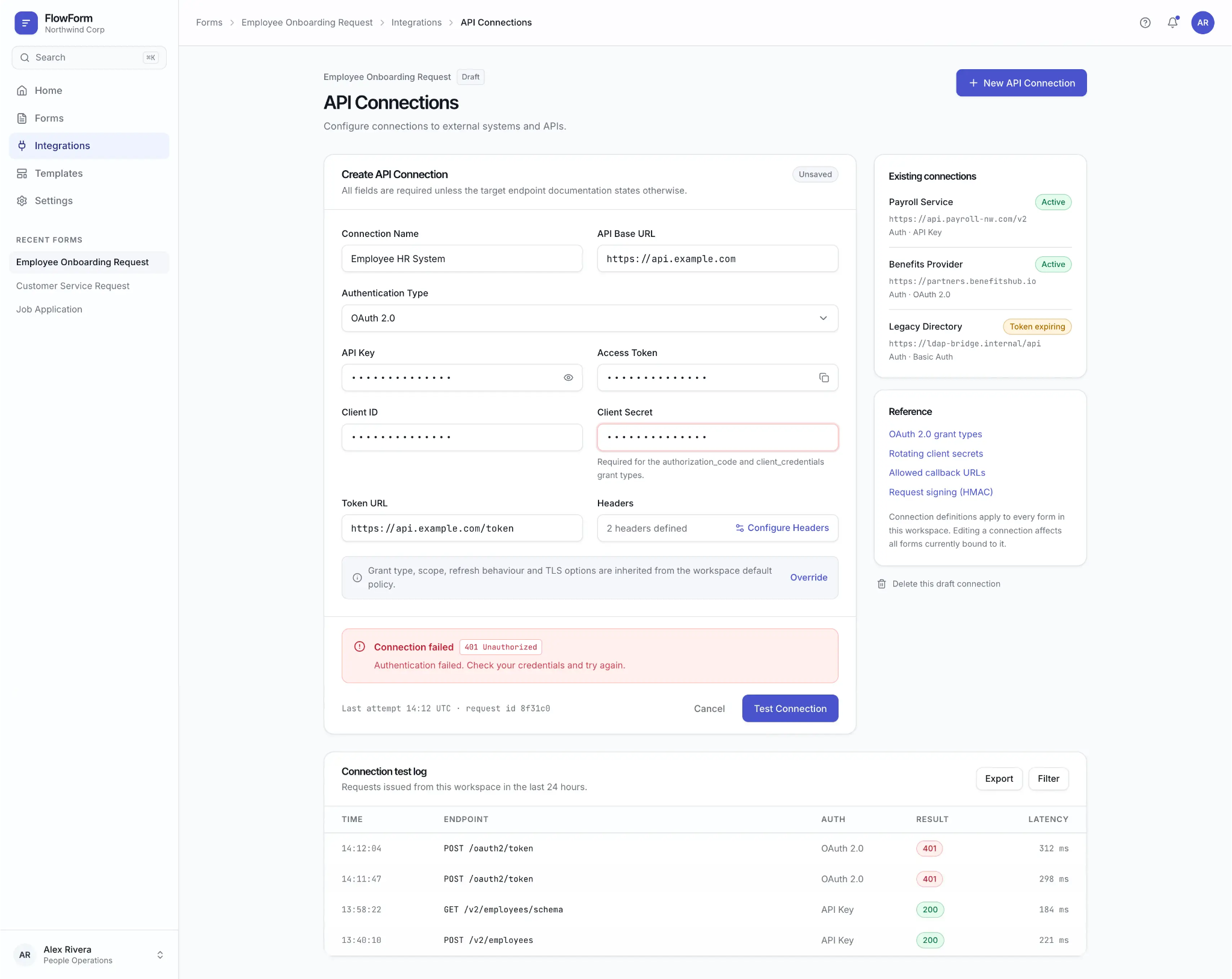
The experience starts with technology
01
Users are immediately presented with technical configuration rather than their intended outcome.
It assumes a shared level of knowledge
02
A first-time user and an experienced developer are given essentially the same experience.
03
Complexity is exposed too early
Users encounter technical fields before they know which information they actually need.
The relationship to the form is unclear
04
The API connection feels like a separate technical task rather than part of the user's form-building goal.
05
Help comes too late
Users may need to leave the workflow to search documentation or ask IT for assistance.
A message such as "401 Unauthorized" describes the technical problem but doesn't help a non-technical user understand what to do next.
Errors don’t support recovery
06
APPROACH, DESIGN PRINCIPLES & DECISIONS
How do we help users accomplish their goal without requiring them to understand the technology first?
Instead of simplifying the technical interface for everyone, I explored how the product could adapt the experience itself. Don't make users adapt to the product, make the product adapt to the user.
Effective onboarding isn't about showing users everything they might eventually need to know.
DESIGN QUESTIONS:
What are they trying to accomplish?
What do they already know?
Where are they likely to struggle?
What information do they need right now?
How can we help them move forward without overwhelming them?
The best experience is not necessarily the one with the fewest features or the simplest interface. It's the one that provides the right level of complexity for the person, context, and task at hand.
Design Principles
01
Start with user intent
Decision: Begin with what the user wants their form to accomplish.
Why: Users understand their business goal better than the technical implementation.
02
Adapt to experience
Decision: Ask users how familiar they are with connecting systems
Why: A first-time user and an experienced developer have different onboarding needs.
03
Teach through doing
Decision: Introduce technical concepts in the context of the task.
Why: Users learn more effectively when information is immediately relevant to what they're trying to accomplish.
04
Progressive disclosure
Decision: Hide advanced configuration by default.
Why: Reduce cognitive load while preserving the full capabilities of the platform.
05
Contextual support
Decision: Put help directly into the workflow.
Why: Users shouldn't have to leave the task to search documentation.
06
Adaptive error recovery
Decision: Present errors in a way that matches the user's likely needs.
Why: Beginners need actionable guidance. Experienced users may need technical details.
07
Preserve the advanced path
Decision: Simplify the default experience without removing advanced controls.
Why: A platform should meet beginners where they are without limiting experienced users.
NEW EXPERIENCE
INTENT
Start with the user’s goal / job to be done
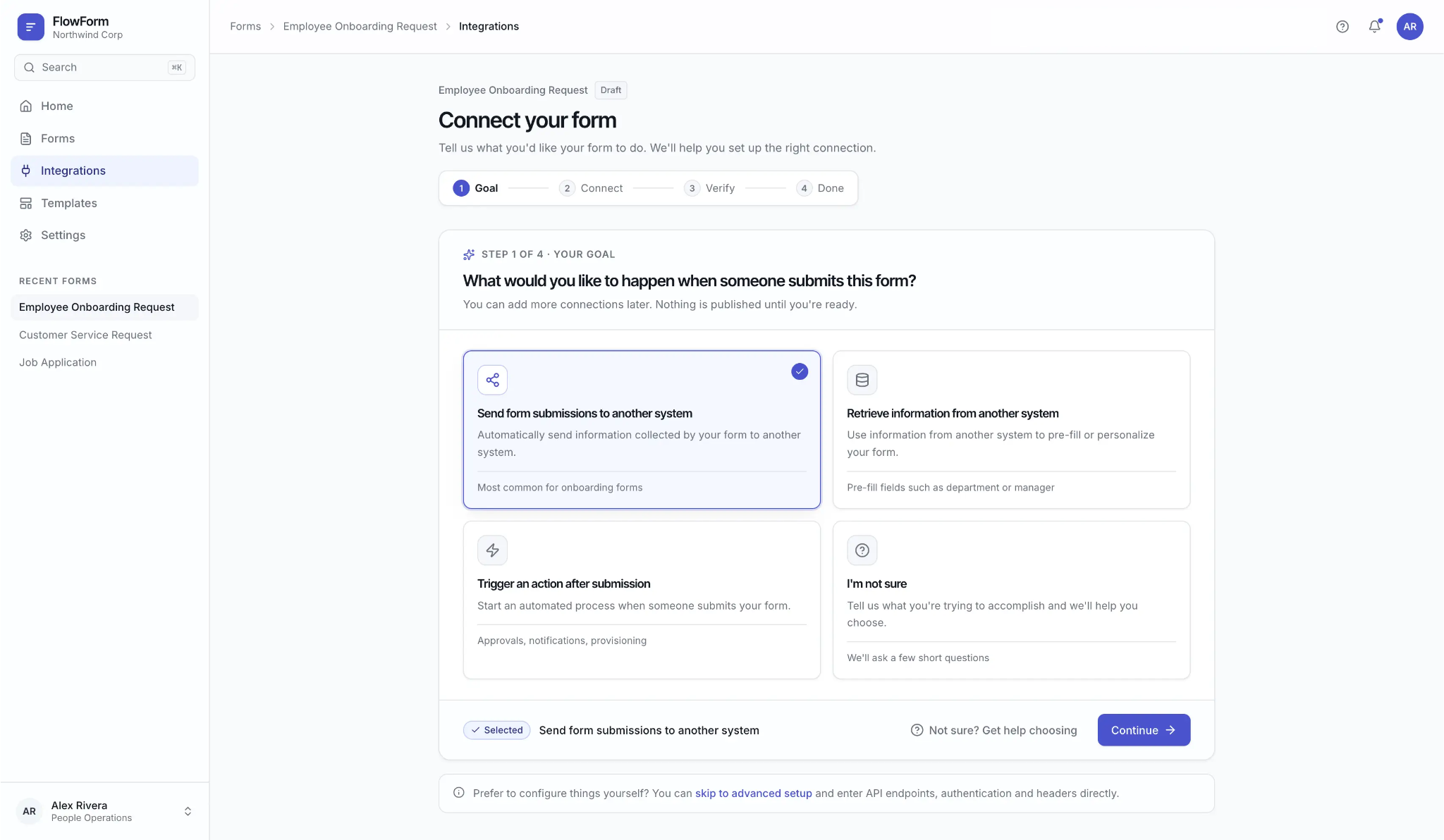
Instead of immediately asking users to configure an API, the experience starts with a simple question: what would you like your form to do?
The user has options to choose from:
Send form submissions to another system
Retrieve information from another system
Trigger an action after submission
I'm not sure
This allows the product to understand the user's intent before determining the technical path and next step in the product experience.
WHY THIS MATTERS:
Users are more likely to understand their desired outcome than the technical architecture required to achieve it.
The experience begins in the user's mental model—not the product's.
ADAPT
Understand the user’s familiarity with the job step (task)
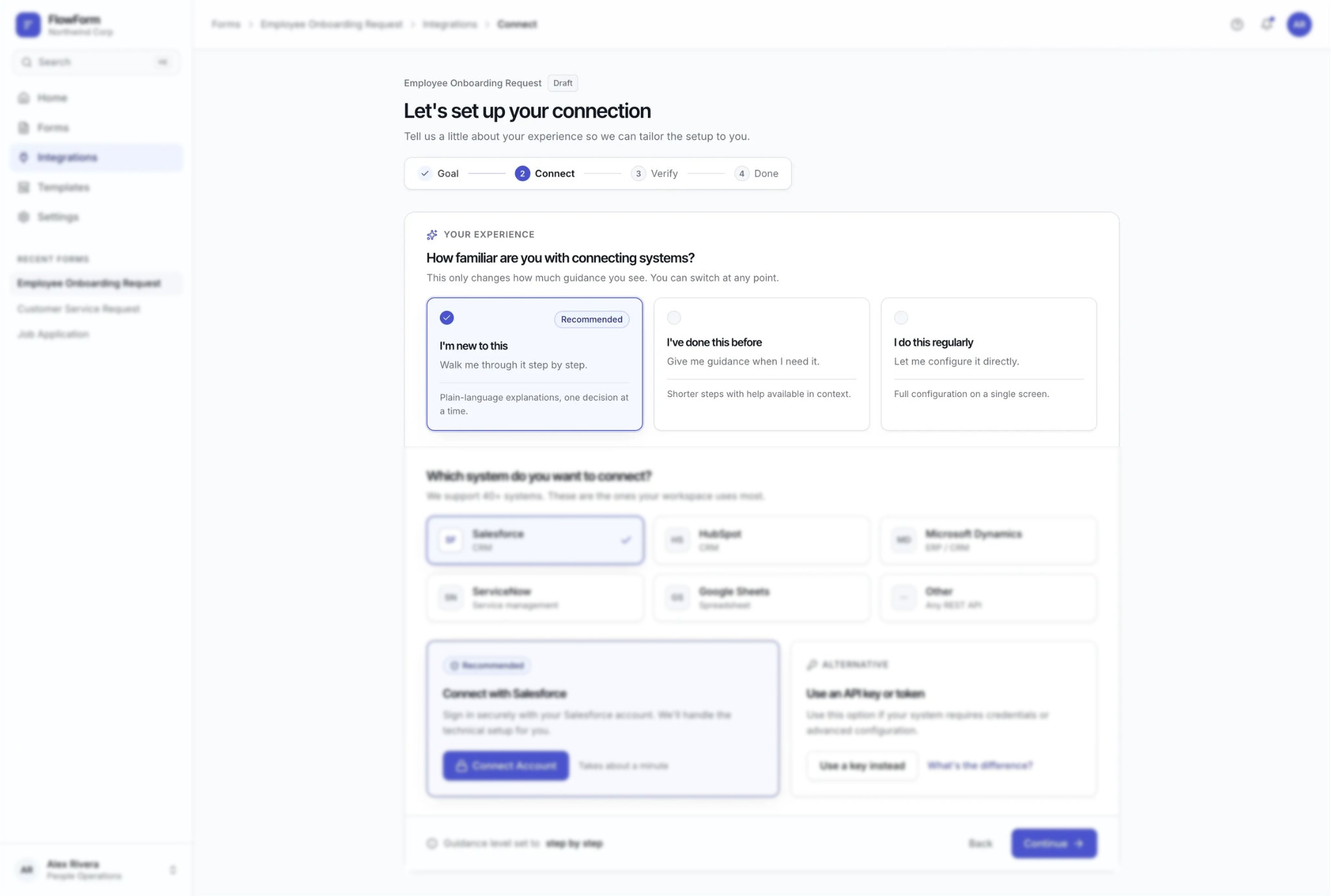
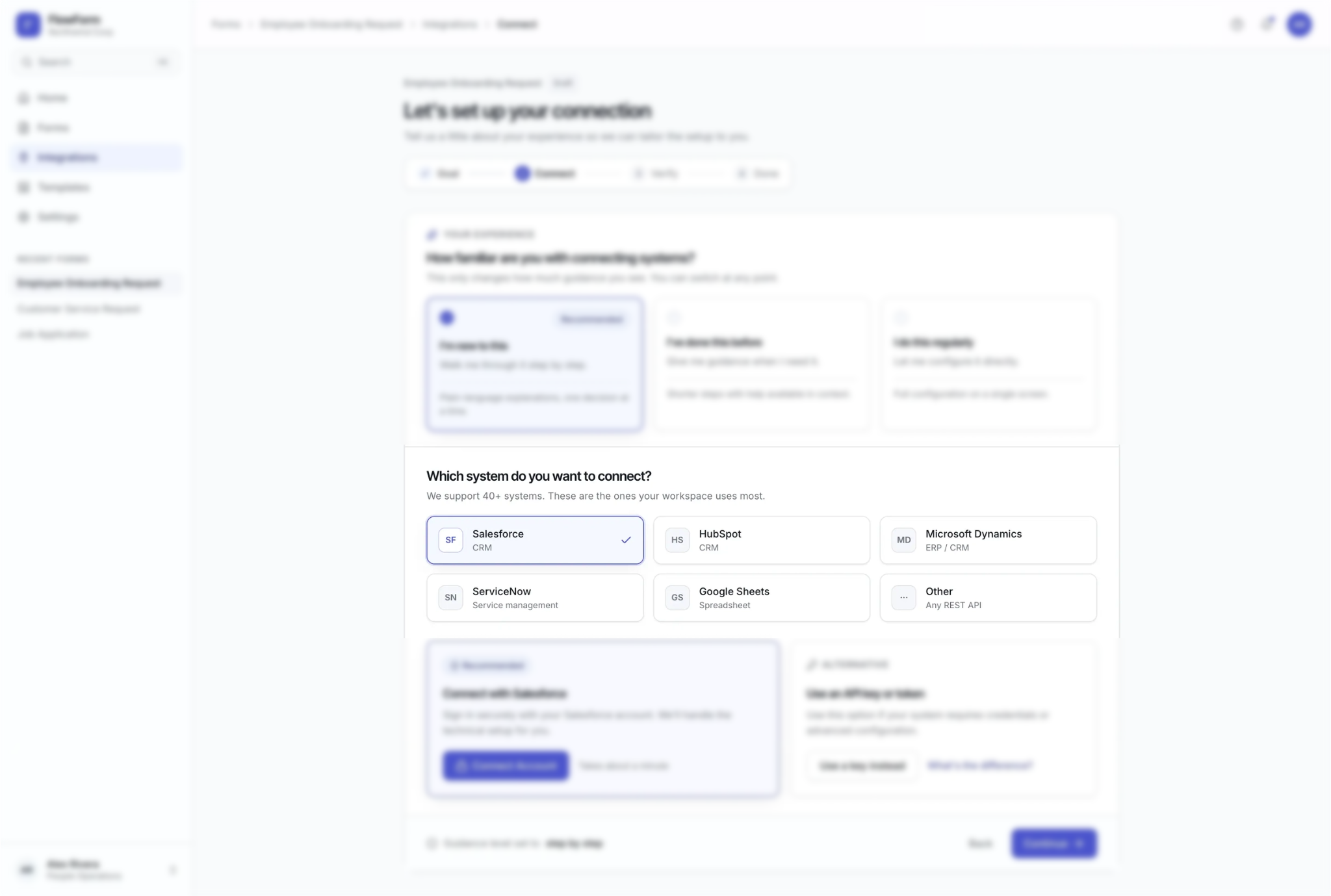
The next step asks the user, How familiar are you with connecting systems?
Users can identify themselves as:
I'm new to this
I've done this before
I do this regularly
This is not intended to create a rigid "beginner" or "expert" profile. Instead, it provides a lightweight signal that allows the product to determine how much guidance to provide. The goal is not to hide complexity, the goal is to put complexity in the right place.
THE EXPERIENCE ADAPTS
A new user receives:
More explanation
Recommended options
Step-by-step guidance
Contextual help
Plain-language terminology
An experienced user receives:
A shorter path
Less instructional content
Direct access to configuration
Advanced options
Technical details when needed
NEW EXPERIENCE
Recommend the simplest path
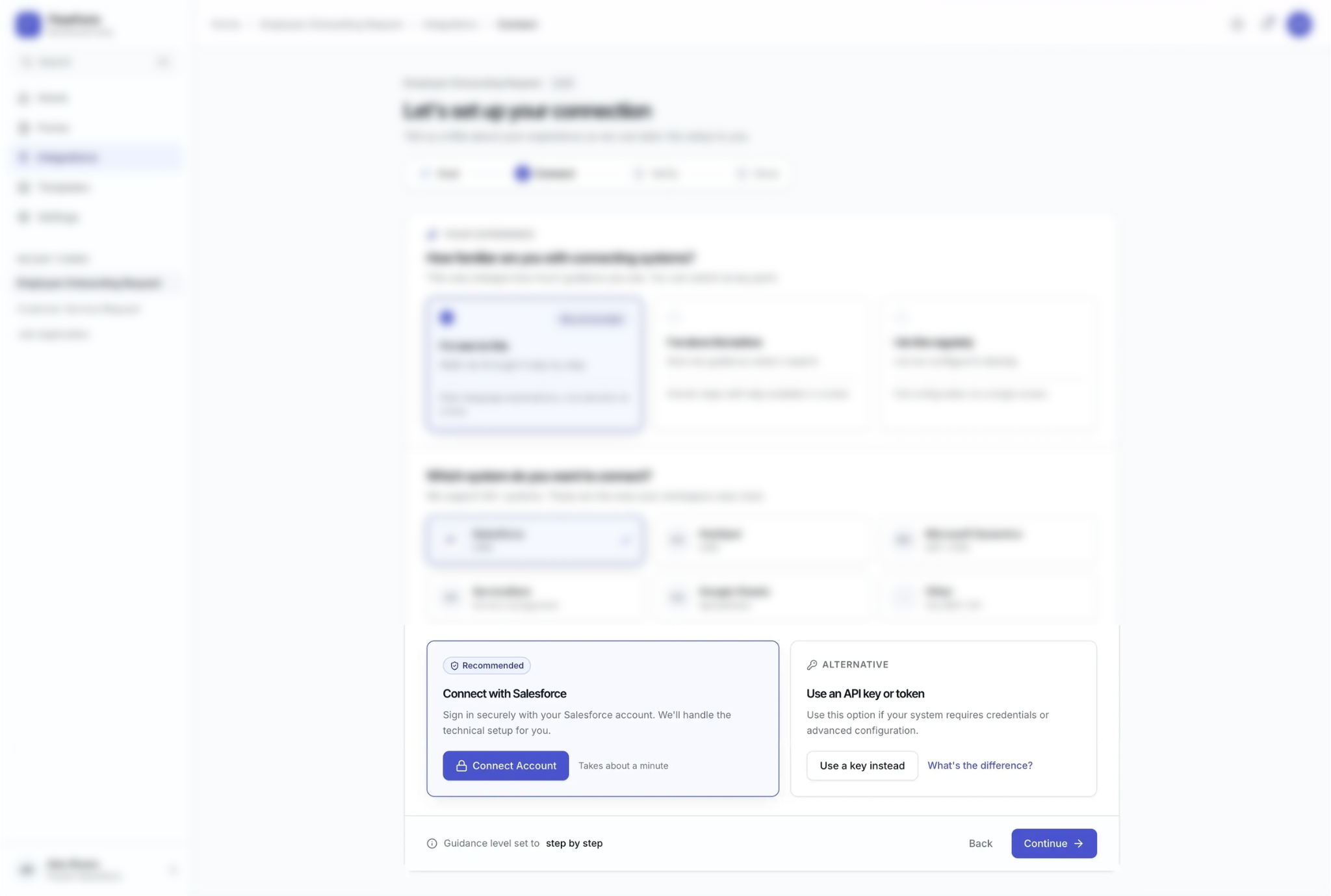
Once the system understands the user's goal, familiarity, and system they want to connect, it can recommend the most appropriate connection method.
In this example, the user chose Salesforce as the system they want to connect.
THE EXPERIENCE ADAPTS
Recommended Path:
“Connect with Salesforce”
"Connect securely using your existing account. We'll handle the technical setup for you."
Alternate Path:
“Use an API key or token”
“For systems that require credentials or advanced configuration”
Remains available as a secondary option for the user
NEW EXPERIENCE
GUIDED
Teach the user through the job step (task)
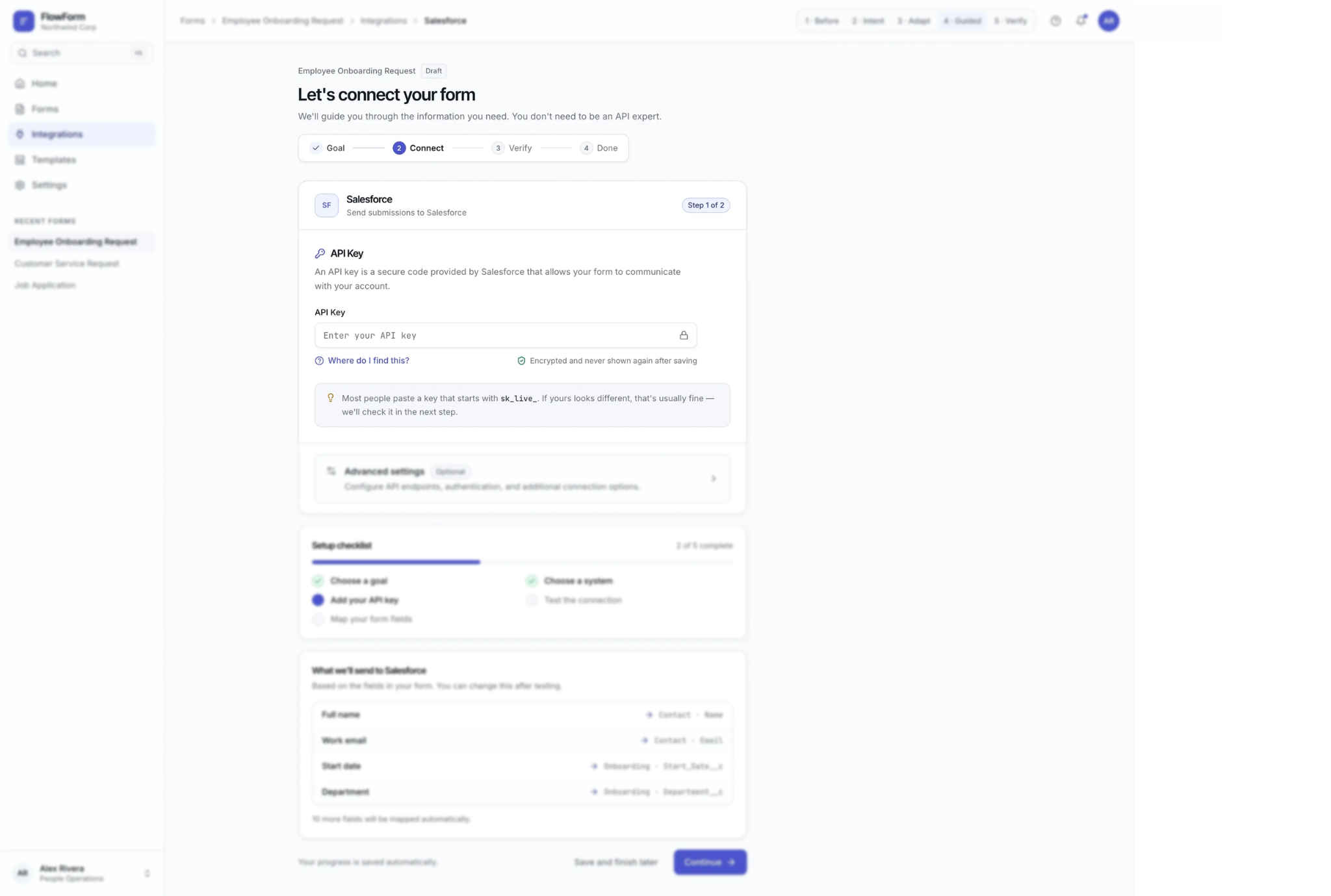
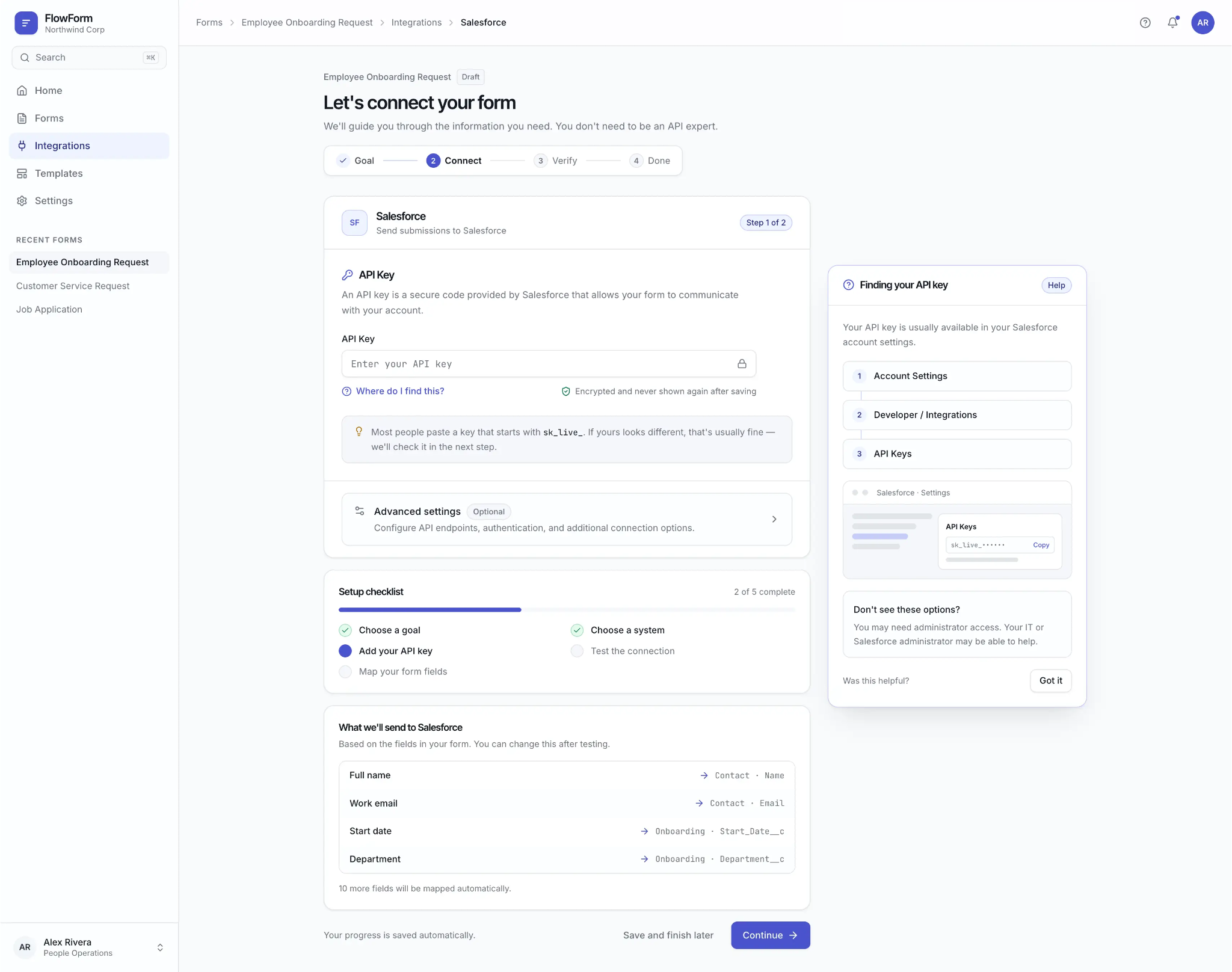
If the user needs to provide an API key, the product doesn't simply present an empty field, instead if explains: “An API key is a secure code provided by Salesforce that allows your form to communicate with your account.”
The user learns what the credential is at the moment they need it. They don't need to complete a course on APIs first, this is learning in context.
Provide contextual help to the user
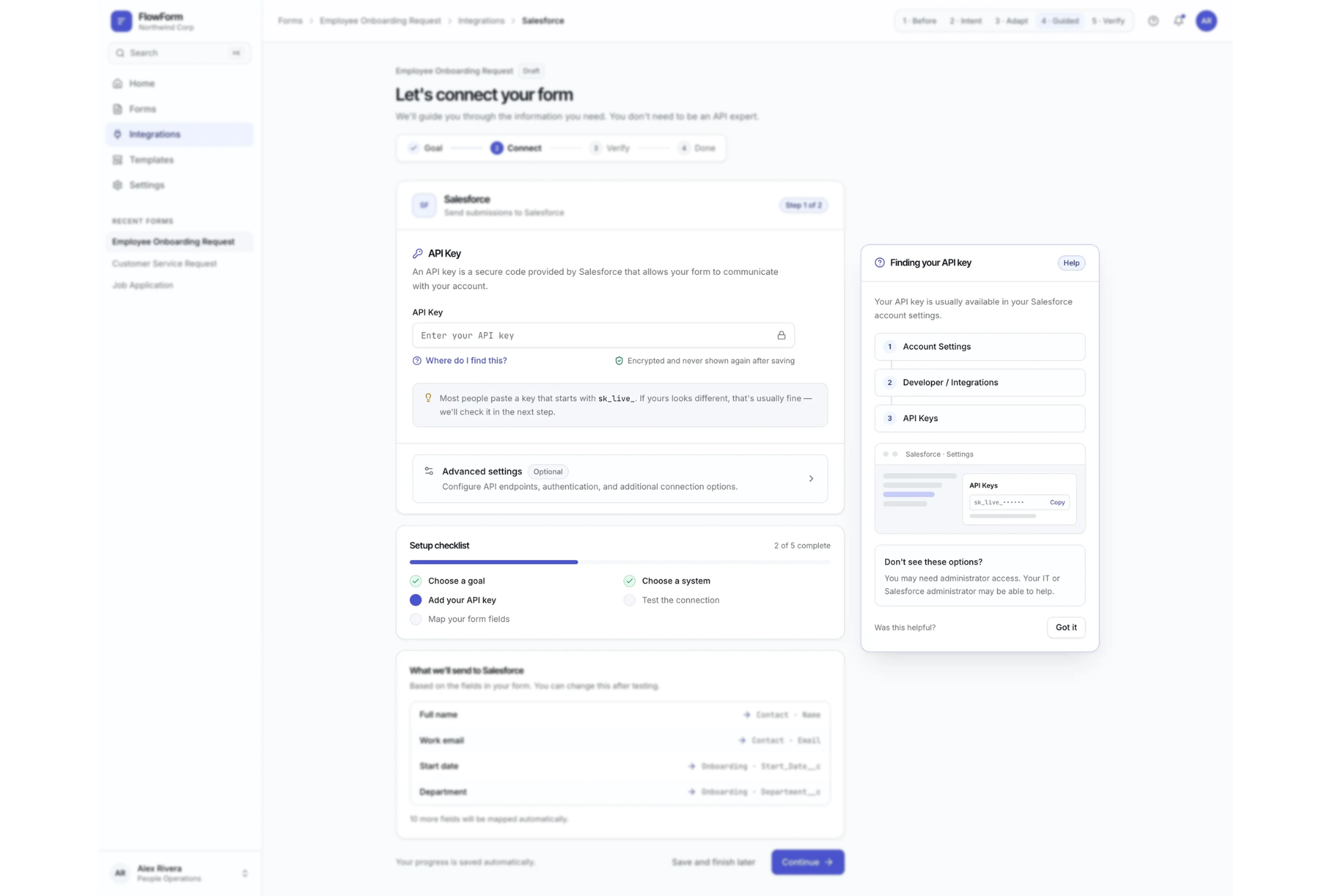
When users need help, they can access it directly within the workflow. The user gets the information they need without losing their place or abandoning the workflow.
Form Field Tooltip:
“Where do I find this?”
Triggers a information card to open on the right hand side to guide and explain it to the user.
Information Card:
“Finding your API key”
Interface explains and breaks the task down into steps.
It also anticipates the next potential problem the user may encounter; "You may need administrator access. Your IT or Salesforce administrator may be able to help."
Progressive disclosure
Simplify the default experience without simplifying the product's capabilities. Advanced settings are available but hidden until they are needed. The beginner sees only the information required to complete the current step.
Advanced users can expand, and access the deeper configuration when necessary, such as:
API Base URL
Authentication Type
Access Token
Client ID
Client Secret
Token URL
Headers
NEW EXPERIENCE
VERIFY
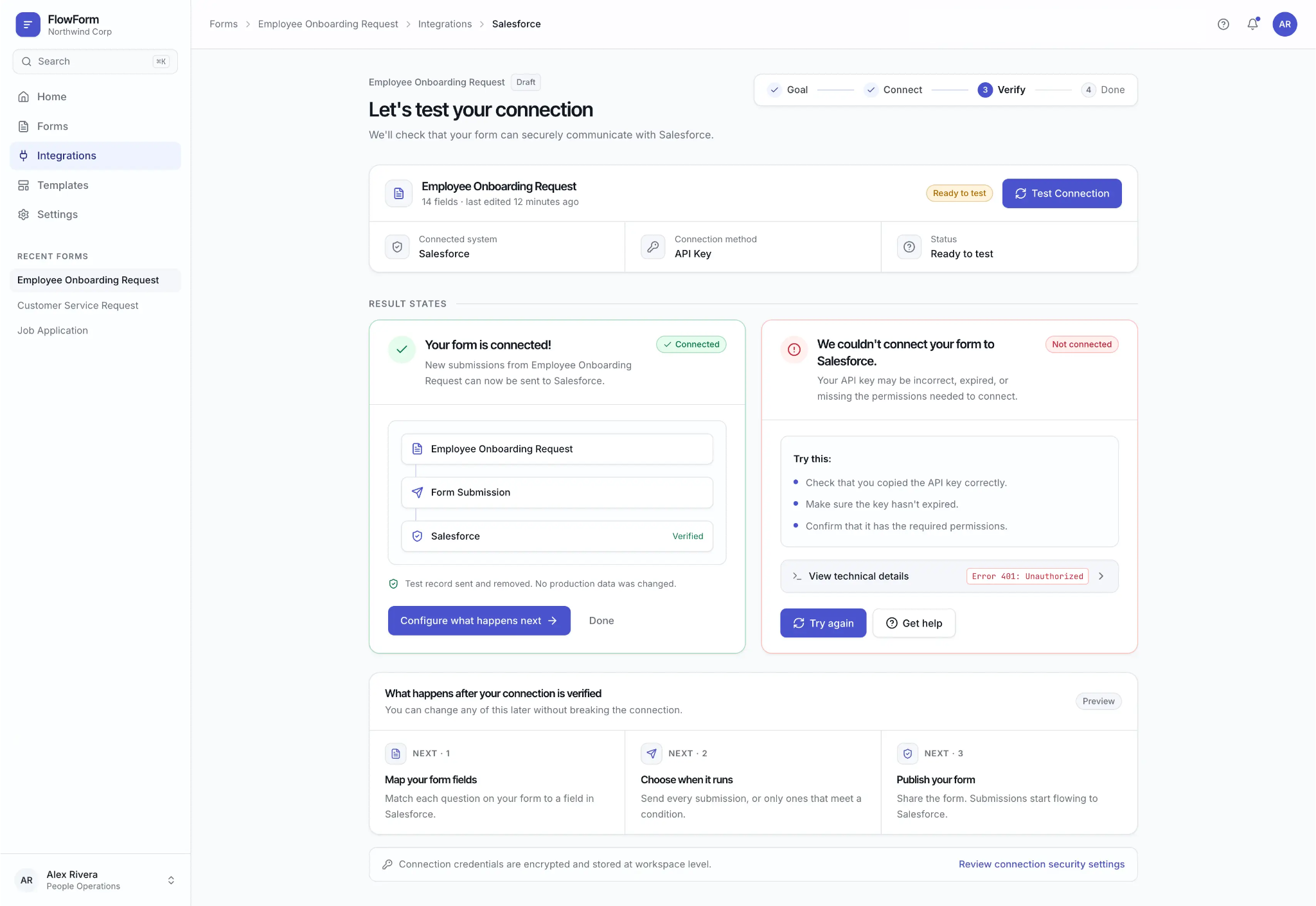
Adapt error recovery
Errors are also an opportunity to adapt to the user's level of understanding. The technical information hasn't been removed, it has simply been moved out of the way until it's useful.
A beginner user receives a clear path to recovery.
An experienced user can access technical details.
Let’s talk about what you’re trying to solve.
I take a small number of new engagements each year. If your challenge sounds like the work above, I’d love to hear about it.